17. Multiline Text Editor
The Gtk.TextView widget can be used to display and edit large amounts
of formatted text. Like the Gtk.TreeView, it has a model/view design.
In this case the Gtk.TextBuffer is the model which represents the text
being edited. This allows two or more Gtk.TextView widgets to share the
same Gtk.TextBuffer, and allows those text buffers to be displayed
slightly differently. Or you could maintain several text buffers and choose to
display each one at different times in the same Gtk.TextView widget.
17.1. The View
The Gtk.TextView is the frontend with which the user can add, edit and
delete textual data. They are commonly used to edit multiple lines of text.
When creating a Gtk.TextView it contains its own default
Gtk.TextBuffer, which you can access via the Gtk.TextView.get_buffer()
method.
By default, text can be added, edited and removed from the Gtk.TextView.
You can disable this by calling Gtk.TextView.set_editable().
If the text is not editable, you usually want to hide the text cursor with
Gtk.TextView.set_cursor_visible() as well. In some cases it may be useful
to set the justification of the text with Gtk.TextView.set_justification().
The text can be displayed at the left edge, (Gtk.Justification.LEFT),
at the right edge (Gtk.Justification.RIGHT), centered
(Gtk.Justification.CENTER), or distributed across the complete
width (Gtk.Justification.FILL).
Another default setting of the Gtk.TextView widget is long lines of
text will continue horizontally until a break is entered. To wrap the text and
prevent it going off the edges of the screen call Gtk.TextView.set_wrap_mode().
17.2. The Model
The Gtk.TextBuffer is the core of the Gtk.TextView widget, and
is used to hold whatever text is being displayed in the Gtk.TextView.
Setting and retrieving the contents is possible with Gtk.TextBuffer.set_text()
and Gtk.TextBuffer.get_text().
However, most text manipulation is accomplished with iterators, represented by
a Gtk.TextIter. An iterator represents a position between two characters
in the text buffer. Iterators are not valid indefinitely; whenever the buffer is
modified in a way that affects the contents of the buffer, all outstanding
iterators become invalid.
Because of this, iterators can’t be used to preserve positions across buffer
modifications. To preserve a position, use Gtk.TextMark.
A text buffer contains two built-in marks; an “insert” mark (which is the position
of the cursor) and the “selection_bound” mark. Both of them can be retrieved using
Gtk.TextBuffer.get_insert() and Gtk.TextBuffer.get_selection_bound(),
respectively. By default, the location of a Gtk.TextMark is not shown.
This can be changed by calling Gtk.TextMark.set_visible().
Many methods exist to retrieve a Gtk.TextIter. For instance,
Gtk.TextBuffer.get_start_iter() returns an iterator pointing to the first
position in the text buffer, whereas Gtk.TextBuffer.get_end_iter() returns
an iterator pointing past the last valid character. Retrieving the bounds of
the selected text can be achieved by calling
Gtk.TextBuffer.get_selection_bounds().
To insert text at a specific position use Gtk.TextBuffer.insert().
Another useful method is Gtk.TextBuffer.insert_at_cursor() which inserts
text wherever the cursor may be currently positioned. To remove portions of
the text buffer use Gtk.TextBuffer.delete().
In addition, Gtk.TextIter can be used to locate textual matches in the
buffer using Gtk.TextIter.forward_search() and
Gtk.TextIter.backward_search().
The start and end iters are used as the starting point of the search and move
forwards/backwards depending on requirements.
17.4. Example
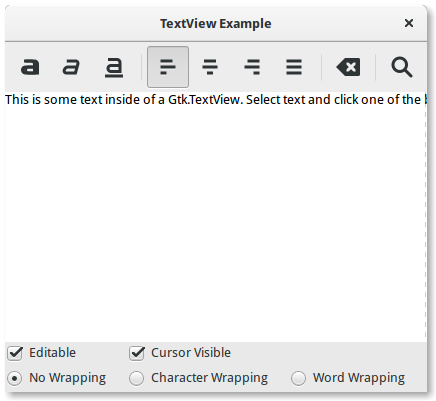
  1import gi
  2
  3gi.require_version("Gtk", "3.0")
  4from gi.repository import Gtk, Pango
  5
  6
  7class SearchDialog(Gtk.Dialog):
  8    def __init__(self, parent):
  9        super().__init__(title="Search", transient_for=parent, modal=True)
 10        self.add_buttons(
 11            Gtk.STOCK_FIND,
 12            Gtk.ResponseType.OK,
 13            Gtk.STOCK_CANCEL,
 14            Gtk.ResponseType.CANCEL,
 15        )
 16
 17        box = self.get_content_area()
 18
 19        label = Gtk.Label(label="Insert text you want to search for:")
 20        box.add(label)
 21
 22        self.entry = Gtk.Entry()
 23        box.add(self.entry)
 24
 25        self.show_all()
 26
 27
 28class TextViewWindow(Gtk.Window):
 29    def __init__(self):
 30        Gtk.Window.__init__(self, title="TextView Example")
 31
 32        self.set_default_size(-1, 350)
 33
 34        self.grid = Gtk.Grid()
 35        self.add(self.grid)
 36
 37        self.create_textview()
 38        self.create_toolbar()
 39        self.create_buttons()
 40
 41    def create_toolbar(self):
 42        toolbar = Gtk.Toolbar()
 43        self.grid.attach(toolbar, 0, 0, 3, 1)
 44
 45        button_bold = Gtk.ToolButton()
 46        button_bold.set_icon_name("format-text-bold-symbolic")
 47        toolbar.insert(button_bold, 0)
 48
 49        button_italic = Gtk.ToolButton()
 50        button_italic.set_icon_name("format-text-italic-symbolic")
 51        toolbar.insert(button_italic, 1)
 52
 53        button_underline = Gtk.ToolButton()
 54        button_underline.set_icon_name("format-text-underline-symbolic")
 55        toolbar.insert(button_underline, 2)
 56
 57        button_bold.connect("clicked", self.on_button_clicked, self.tag_bold)
 58        button_italic.connect("clicked", self.on_button_clicked, self.tag_italic)
 59        button_underline.connect("clicked", self.on_button_clicked, self.tag_underline)
 60
 61        toolbar.insert(Gtk.SeparatorToolItem(), 3)
 62
 63        radio_justifyleft = Gtk.RadioToolButton()
 64        radio_justifyleft.set_icon_name("format-justify-left-symbolic")
 65        toolbar.insert(radio_justifyleft, 4)
 66
 67        radio_justifycenter = Gtk.RadioToolButton.new_from_widget(radio_justifyleft)
 68        radio_justifycenter.set_icon_name("format-justify-center-symbolic")
 69        toolbar.insert(radio_justifycenter, 5)
 70
 71        radio_justifyright = Gtk.RadioToolButton.new_from_widget(radio_justifyleft)
 72        radio_justifyright.set_icon_name("format-justify-right-symbolic")
 73        toolbar.insert(radio_justifyright, 6)
 74
 75        radio_justifyfill = Gtk.RadioToolButton.new_from_widget(radio_justifyleft)
 76        radio_justifyfill.set_icon_name("format-justify-fill-symbolic")
 77        toolbar.insert(radio_justifyfill, 7)
 78
 79        radio_justifyleft.connect(
 80            "toggled", self.on_justify_toggled, Gtk.Justification.LEFT
 81        )
 82        radio_justifycenter.connect(
 83            "toggled", self.on_justify_toggled, Gtk.Justification.CENTER
 84        )
 85        radio_justifyright.connect(
 86            "toggled", self.on_justify_toggled, Gtk.Justification.RIGHT
 87        )
 88        radio_justifyfill.connect(
 89            "toggled", self.on_justify_toggled, Gtk.Justification.FILL
 90        )
 91
 92        toolbar.insert(Gtk.SeparatorToolItem(), 8)
 93
 94        button_clear = Gtk.ToolButton()
 95        button_clear.set_icon_name("edit-clear-symbolic")
 96        button_clear.connect("clicked", self.on_clear_clicked)
 97        toolbar.insert(button_clear, 9)
 98
 99        toolbar.insert(Gtk.SeparatorToolItem(), 10)
100
101        button_search = Gtk.ToolButton()
102        button_search.set_icon_name("system-search-symbolic")
103        button_search.connect("clicked", self.on_search_clicked)
104        toolbar.insert(button_search, 11)
105
106    def create_textview(self):
107        scrolledwindow = Gtk.ScrolledWindow()
108        scrolledwindow.set_hexpand(True)
109        scrolledwindow.set_vexpand(True)
110        self.grid.attach(scrolledwindow, 0, 1, 3, 1)
111
112        self.textview = Gtk.TextView()
113        self.textbuffer = self.textview.get_buffer()
114        self.textbuffer.set_text(
115            "This is some text inside of a Gtk.TextView. "
116            + "Select text and click one of the buttons 'bold', 'italic', "
117            + "or 'underline' to modify the text accordingly."
118        )
119        scrolledwindow.add(self.textview)
120
121        self.tag_bold = self.textbuffer.create_tag("bold", weight=Pango.Weight.BOLD)
122        self.tag_italic = self.textbuffer.create_tag("italic", style=Pango.Style.ITALIC)
123        self.tag_underline = self.textbuffer.create_tag(
124            "underline", underline=Pango.Underline.SINGLE
125        )
126        self.tag_found = self.textbuffer.create_tag("found", background="yellow")
127
128    def create_buttons(self):
129        check_editable = Gtk.CheckButton(label="Editable")
130        check_editable.set_active(True)
131        check_editable.connect("toggled", self.on_editable_toggled)
132        self.grid.attach(check_editable, 0, 2, 1, 1)
133
134        check_cursor = Gtk.CheckButton(label="Cursor Visible")
135        check_cursor.set_active(True)
136        check_editable.connect("toggled", self.on_cursor_toggled)
137        self.grid.attach_next_to(
138            check_cursor, check_editable, Gtk.PositionType.RIGHT, 1, 1
139        )
140
141        radio_wrapnone = Gtk.RadioButton.new_with_label_from_widget(None, "No Wrapping")
142        self.grid.attach(radio_wrapnone, 0, 3, 1, 1)
143
144        radio_wrapchar = Gtk.RadioButton.new_with_label_from_widget(
145            radio_wrapnone, "Character Wrapping"
146        )
147        self.grid.attach_next_to(
148            radio_wrapchar, radio_wrapnone, Gtk.PositionType.RIGHT, 1, 1
149        )
150
151        radio_wrapword = Gtk.RadioButton.new_with_label_from_widget(
152            radio_wrapnone, "Word Wrapping"
153        )
154        self.grid.attach_next_to(
155            radio_wrapword, radio_wrapchar, Gtk.PositionType.RIGHT, 1, 1
156        )
157
158        radio_wrapnone.connect("toggled", self.on_wrap_toggled, Gtk.WrapMode.NONE)
159        radio_wrapchar.connect("toggled", self.on_wrap_toggled, Gtk.WrapMode.CHAR)
160        radio_wrapword.connect("toggled", self.on_wrap_toggled, Gtk.WrapMode.WORD)
161
162    def on_button_clicked(self, widget, tag):
163        bounds = self.textbuffer.get_selection_bounds()
164        if len(bounds) != 0:
165            start, end = bounds
166            self.textbuffer.apply_tag(tag, start, end)
167
168    def on_clear_clicked(self, widget):
169        start = self.textbuffer.get_start_iter()
170        end = self.textbuffer.get_end_iter()
171        self.textbuffer.remove_all_tags(start, end)
172
173    def on_editable_toggled(self, widget):
174        self.textview.set_editable(widget.get_active())
175
176    def on_cursor_toggled(self, widget):
177        self.textview.set_cursor_visible(widget.get_active())
178
179    def on_wrap_toggled(self, widget, mode):
180        self.textview.set_wrap_mode(mode)
181
182    def on_justify_toggled(self, widget, justification):
183        self.textview.set_justification(justification)
184
185    def on_search_clicked(self, widget):
186        dialog = SearchDialog(self)
187        response = dialog.run()
188        if response == Gtk.ResponseType.OK:
189            cursor_mark = self.textbuffer.get_insert()
190            start = self.textbuffer.get_iter_at_mark(cursor_mark)
191            if start.get_offset() == self.textbuffer.get_char_count():
192                start = self.textbuffer.get_start_iter()
193
194            self.search_and_mark(dialog.entry.get_text(), start)
195
196        dialog.destroy()
197
198    def search_and_mark(self, text, start):
199        end = self.textbuffer.get_end_iter()
200        match = start.forward_search(text, 0, end)
201
202        if match is not None:
203            match_start, match_end = match
204            self.textbuffer.apply_tag(self.tag_found, match_start, match_end)
205            self.search_and_mark(text, match_end)
206
207
208win = TextViewWindow()
209win.connect("destroy", Gtk.main_quit)
210win.show_all()
211Gtk.main()