6. Layout Containers
While many GUI toolkits require you to precisely place widgets in a window, using absolute positioning, GTK+ uses a different approach. Rather than specifying the position and size of each widget in the window, you can arrange your widgets in rows, columns, and/or tables. The size of your window can be determined automatically, based on the sizes of the widgets it contains. And the sizes of the widgets are, in turn, determined by the amount of text they contain, or the minimum and maximum sizes that you specify, and/or how you have requested that the available space should be shared between sets of widgets. You can perfect your layout by specifying padding distance and centering values for each of your widgets. GTK+ then uses all this information to resize and reposition everything sensibly and smoothly when the user manipulates the window.
GTK+ arranges widgets hierarchically, using containers.
They are invisible to the end user and are inserted into a window, or placed
within each other to layout components.
There are two flavours of containers: single-child
containers, which are all descendants of Gtk.Bin, and multiple-child
containers, which are descendants of Gtk.Container.
The most commonly used are vertical or horizontal boxes
(Gtk.Box) and grids (Gtk.Grid).
6.1. Boxes
Boxes are invisible containers into which we can pack our widgets.
When packing widgets into a horizontal box, the objects are inserted
horizontally from left to right or right to left depending on whether
Gtk.Box.pack_start() or Gtk.Box.pack_end() is used.
In a vertical box, widgets are packed from top to bottom or vice versa.
You may use any combination of boxes inside or beside other boxes to create
the desired effect.
6.1.1. Example
Let’s take a look at a slightly modified version of the extended example with two buttons.
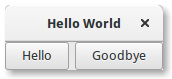
1 2 3 4 5 6 7 8 9 10 11 12 13 14 15 16 17 18 19 20 21 22 23 24 25 26 27 28 29 30 31 32 | import gi gi.require_version("Gtk", "3.0") from gi.repository import Gtk class MyWindow(Gtk.Window): def __init__(self): super().__init__(title="Hello World") self.box = Gtk.Box(spacing=6) self.add(self.box) self.button1 = Gtk.Button(label="Hello") self.button1.connect("clicked", self.on_button1_clicked) self.box.pack_start(self.button1, True, True, 0) self.button2 = Gtk.Button(label="Goodbye") self.button2.connect("clicked", self.on_button2_clicked) self.box.pack_start(self.button2, True, True, 0) def on_button1_clicked(self, widget): print("Hello") def on_button2_clicked(self, widget): print("Goodbye") win = MyWindow() win.connect("destroy", Gtk.main_quit) win.show_all() Gtk.main() |
First, we create a horizontally orientated box container where 6 pixels are placed between children. This box becomes the child of the top-level window.
        self.box = Gtk.Box(spacing=6)
        self.add(self.box)
Subsequently, we add two different buttons to the box container.
        self.button1 = Gtk.Button(label="Hello")
        self.button1.connect("clicked", self.on_button1_clicked)
        self.box.pack_start(self.button1, True, True, 0)

        self.button2 = Gtk.Button(label="Goodbye")
        self.button2.connect("clicked", self.on_button2_clicked)
        self.box.pack_start(self.button2, True, True, 0)
While with Gtk.Box.pack_start() widgets are positioned from left to right,
Gtk.Box.pack_end() positions them from right to left.
6.2. Grid
Gtk.Grid is a container which arranges its child widgets in rows and
columns, but you do not need to specify the dimensions in the constructor.
Children are added using Gtk.Grid.attach(). They can span multiple rows or
columns. The Gtk.Grid.attach() method takes five parameters:
The
childparameter is theGtk.Widgetto add.leftis the column number to attach the left side ofchildto.topindicates the row number to attach the top side ofchildto.widthandheightindicate the number of columns that thechildwill span, and the number of rows that thechildwill span, respectively.
It is also possible to add a child next to an existing child, using
Gtk.Grid.attach_next_to(), which also takes five parameters:
childis theGtk.Widgetto add, as above.siblingis an existing child widget ofself(aGtk.Gridinstance) orNone. Thechildwidget will be placed next tosibling, or ifsiblingisNone, at the beginning or end of the grid.sideis aGtk.PositionTypeindicating the side ofsiblingthatchildis positioned next to.widthandheightindicate the number of columns and rows thechildwidget will span, respectively.
Finally, Gtk.Grid can be used like a Gtk.Box by just using
Gtk.Grid.add(), which will place children next to each other in the
direction determined by the “orientation” property (defaults to
Gtk.Orientation.HORIZONTAL).
6.2.1. Example
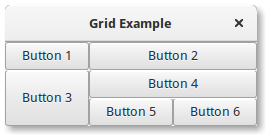
1 2 3 4 5 6 7 8 9 10 11 12 13 14 15 16 17 18 19 20 21 22 23 24 25 26 27 28 29 30 31 32 33 | import gi gi.require_version("Gtk", "3.0") from gi.repository import Gtk class GridWindow(Gtk.Window): def __init__(self): super().__init__(title="Grid Example") button1 = Gtk.Button(label="Button 1") button2 = Gtk.Button(label="Button 2") button3 = Gtk.Button(label="Button 3") button4 = Gtk.Button(label="Button 4") button5 = Gtk.Button(label="Button 5") button6 = Gtk.Button(label="Button 6") grid = Gtk.Grid() grid.add(button1) grid.attach(button2, 1, 0, 2, 1) grid.attach_next_to(button3, button1, Gtk.PositionType.BOTTOM, 1, 2) grid.attach_next_to(button4, button3, Gtk.PositionType.RIGHT, 2, 1) grid.attach(button5, 1, 2, 1, 1) grid.attach_next_to(button6, button5, Gtk.PositionType.RIGHT, 1, 1) self.add(grid) win = GridWindow() win.connect("destroy", Gtk.main_quit) win.show_all() Gtk.main() |
6.3. ListBox
A Gtk.ListBox is a vertical container that contains Gtk.ListBoxRow
children. These rows can be dynamically sorted and filtered, and headers can be
added dynamically depending on the row content. It also allows keyboard and
mouse navigation and selection like a typical list.
Using Gtk.ListBox is often an alternative to Gtk.TreeView, especially
when the list content has a more complicated layout than what is allowed by a
Gtk.CellRenderer, or when the content is interactive (e.g. has a button
in it).
Although a Gtk.ListBox must have only Gtk.ListBoxRow children, you can
add any kind of widget to it via Gtk.Container.add() and a
Gtk.ListBoxRow widget will automatically be inserted between the list and
the widget.
6.3.1. Example
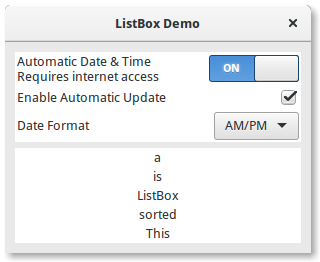
1 2 3 4 5 6 7 8 9 10 11 12 13 14 15 16 17 18 19 20 21 22 23 24 25 26 27 28 29 30 31 32 33 34 35 36 37 38 39 40 41 42 43 44 45 46 47 48 49 50 51 52 53 54 55 56 57 58 59 60 61 62 63 64 65 66 67 68 69 70 71 72 73 74 75 76 77 78 79 80 81 82 83 84 85 86 87 88 89 90 91 92 | import gi gi.require_version("Gtk", "3.0") from gi.repository import Gtk class ListBoxRowWithData(Gtk.ListBoxRow): def __init__(self, data): super().__init__() self.data = data self.add(Gtk.Label(label=data)) class ListBoxWindow(Gtk.Window): def __init__(self): super().__init__(title="ListBox Demo") self.set_border_width(10) box_outer = Gtk.Box(orientation=Gtk.Orientation.VERTICAL, spacing=6) self.add(box_outer) listbox = Gtk.ListBox() listbox.set_selection_mode(Gtk.SelectionMode.NONE) box_outer.pack_start(listbox, True, True, 0) row = Gtk.ListBoxRow() hbox = Gtk.Box(orientation=Gtk.Orientation.HORIZONTAL, spacing=50) row.add(hbox) vbox = Gtk.Box(orientation=Gtk.Orientation.VERTICAL) hbox.pack_start(vbox, True, True, 0) label1 = Gtk.Label(label="Automatic Date & Time", xalign=0) label2 = Gtk.Label(label="Requires internet access", xalign=0) vbox.pack_start(label1, True, True, 0) vbox.pack_start(label2, True, True, 0) switch = Gtk.Switch() switch.props.valign = Gtk.Align.CENTER hbox.pack_start(switch, False, True, 0) listbox.add(row) row = Gtk.ListBoxRow() hbox = Gtk.Box(orientation=Gtk.Orientation.HORIZONTAL, spacing=50) row.add(hbox) label = Gtk.Label(label="Enable Automatic Update", xalign=0) check = Gtk.CheckButton() hbox.pack_start(label, True, True, 0) hbox.pack_start(check, False, True, 0) listbox.add(row) row = Gtk.ListBoxRow() hbox = Gtk.Box(orientation=Gtk.Orientation.HORIZONTAL, spacing=50) row.add(hbox) label = Gtk.Label(label="Date Format", xalign=0) combo = Gtk.ComboBoxText() combo.insert(0, "0", "24-hour") combo.insert(1, "1", "AM/PM") hbox.pack_start(label, True, True, 0) hbox.pack_start(combo, False, True, 0) listbox.add(row) listbox_2 = Gtk.ListBox() items = "This is a sorted ListBox Fail".split() for item in items: listbox_2.add(ListBoxRowWithData(item)) def sort_func(row_1, row_2, data, notify_destroy): return row_1.data.lower() > row_2.data.lower() def filter_func(row, data, notify_destroy): return False if row.data == "Fail" else True listbox_2.set_sort_func(sort_func, None, False) listbox_2.set_filter_func(filter_func, None, False) def on_row_activated(listbox_widget, row): print(row.data) listbox_2.connect("row-activated", on_row_activated) box_outer.pack_start(listbox_2, True, True, 0) listbox_2.show_all() win = ListBoxWindow() win.connect("destroy", Gtk.main_quit) win.show_all() Gtk.main() |
6.4. Stack and StackSwitcher
A Gtk.Stack is a container which only shows one of its children at a
time. In contrast to Gtk.Notebook, Gtk.Stack does not provide
a means for users to change the visible child. Instead, the
Gtk.StackSwitcher widget can be used with Gtk.Stack to
provide this functionality.
Transitions between pages can be animated as slides or fades. This can be
controlled with Gtk.Stack.set_transition_type(). These animations respect
the “gtk-enable-animations” setting.
Transition speed can be adjusted with Gtk.Stack.set_transition_duration()
The Gtk.StackSwitcher widget acts as a controller for a
Gtk.Stack; it shows a row of buttons to switch between the various
pages of the associated stack widget.
All the content for the buttons comes from the child properties of the
Gtk.Stack.
It is possible to associate multiple Gtk.StackSwitcher widgets with
the same Gtk.Stack widget.
6.4.1. Example
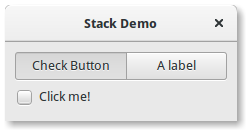
1 2 3 4 5 6 7 8 9 10 11 12 13 14 15 16 17 18 19 20 21 22 23 24 25 26 27 28 29 30 31 32 33 34 35 | import gi gi.require_version("Gtk", "3.0") from gi.repository import Gtk class StackWindow(Gtk.Window): def __init__(self): super().__init__(title="Stack Demo") self.set_border_width(10) vbox = Gtk.Box(orientation=Gtk.Orientation.VERTICAL, spacing=6) self.add(vbox) stack = Gtk.Stack() stack.set_transition_type(Gtk.StackTransitionType.SLIDE_LEFT_RIGHT) stack.set_transition_duration(1000) checkbutton = Gtk.CheckButton(label="Click me!") stack.add_titled(checkbutton, "check", "Check Button") label = Gtk.Label() label.set_markup("<big>A fancy label</big>") stack.add_titled(label, "label", "A label") stack_switcher = Gtk.StackSwitcher() stack_switcher.set_stack(stack) vbox.pack_start(stack_switcher, True, True, 0) vbox.pack_start(stack, True, True, 0) win = StackWindow() win.connect("destroy", Gtk.main_quit) win.show_all() Gtk.main() |
6.5. HeaderBar
A Gtk.HeaderBar is similar to a horizontal Gtk.Box, it allows
to place children at the start or the end. In addition, it allows a title to be
displayed. The title will be centered with respect to the width of the box,
even if the children at either side take up different amounts of space.
Since GTK+ now supports Client Side Decoration, a Gtk.HeaderBar can
be used in place of the title bar (which is rendered by the Window Manager).
A Gtk.HeaderBar is usually located across the top of a window and
should contain commonly used controls which affect the content below. They also
provide access to window controls, including the close window button and window
menu.
6.5.1. Example
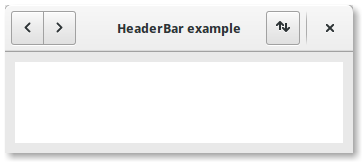
1 2 3 4 5 6 7 8 9 10 11 12 13 14 15 16 17 18 19 20 21 22 23 24 25 26 27 28 29 30 31 32 33 34 35 36 37 38 39 40 41 42 43 44 | import gi gi.require_version("Gtk", "3.0") from gi.repository import Gtk, Gio class HeaderBarWindow(Gtk.Window): def __init__(self): super().__init__(title="HeaderBar Demo") self.set_border_width(10) self.set_default_size(400, 200) hb = Gtk.HeaderBar() hb.set_show_close_button(True) hb.props.title = "HeaderBar example" self.set_titlebar(hb) button = Gtk.Button() icon = Gio.ThemedIcon(name="mail-send-receive-symbolic") image = Gtk.Image.new_from_gicon(icon, Gtk.IconSize.BUTTON) button.add(image) hb.pack_end(button) box = Gtk.Box(orientation=Gtk.Orientation.HORIZONTAL) Gtk.StyleContext.add_class(box.get_style_context(), "linked") button = Gtk.Button() button.add( Gtk.Arrow(arrow_type=Gtk.ArrowType.LEFT, shadow_type=Gtk.ShadowType.NONE) ) box.add(button) button = Gtk.Button.new_from_icon_name("pan-end-symbolic", Gtk.IconSize.MENU) box.add(button) hb.pack_start(box) self.add(Gtk.TextView()) win = HeaderBarWindow() win.connect("destroy", Gtk.main_quit) win.show_all() Gtk.main() |
6.6. FlowBox
Note
This example requires at least GTK+ 3.12.
A Gtk.FlowBox is a container that positions child widgets in sequence
according to its orientation.
For instance, with the horizontal orientation, the widgets will be arranged from left to right, starting a new row under the previous row when necessary. Reducing the width in this case will require more rows, so a larger height will be requested.
Likewise, with the vertical orientation, the widgets will be arranged from top to bottom, starting a new column to the right when necessary. Reducing the height will require more columns, so a larger width will be requested.
The children of a Gtk.FlowBox can be dynamically sorted and filtered.
Although a Gtk.FlowBox must have only Gtk.FlowBoxChild
children, you can add any kind of widget to it via Gtk.Container.add(),
and a Gtk.FlowBoxChild widget will automatically be inserted between
the box and the widget.
6.6.1. Example
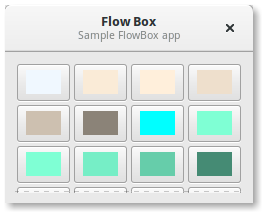
1 2 3 4 5 6 7 8 9 10 11 12 13 14 15 16 17 18 19 20 21 22 23 24 25 26 27 28 29 30 31 32 33 34 35 36 37 38 39 40 41 42 43 44 45 46 47 48 49 50 51 52 53 54 55 56 57 58 59 60 61 62 63 64 65 66 67 68 69 70 71 72 73 74 75 76 77 78 79 80 81 82 83 84 85 86 87 88 89 90 91 92 93 94 95 96 97 98 99 100 101 102 103 104 105 106 107 108 109 110 111 112 113 114 115 116 117 118 119 120 121 122 123 124 125 126 127 128 129 130 131 132 133 | import gi gi.require_version("Gtk", "3.0") from gi.repository import Gtk, Gdk class FlowBoxWindow(Gtk.Window): def __init__(self): super().__init__(title="FlowBox Demo") self.set_border_width(10) self.set_default_size(300, 250) header = Gtk.HeaderBar(title="Flow Box") header.set_subtitle("Sample FlowBox app") header.props.show_close_button = True self.set_titlebar(header) scrolled = Gtk.ScrolledWindow() scrolled.set_policy(Gtk.PolicyType.NEVER, Gtk.PolicyType.AUTOMATIC) flowbox = Gtk.FlowBox() flowbox.set_valign(Gtk.Align.START) flowbox.set_max_children_per_line(30) flowbox.set_selection_mode(Gtk.SelectionMode.NONE) self.create_flowbox(flowbox) scrolled.add(flowbox) self.add(scrolled) self.show_all() def on_draw(self, widget, cr, data): context = widget.get_style_context() width = widget.get_allocated_width() height = widget.get_allocated_height() Gtk.render_background(context, cr, 0, 0, width, height) r, g, b, a = data["color"] cr.set_source_rgba(r, g, b, a) cr.rectangle(0, 0, width, height) cr.fill() def color_swatch_new(self, str_color): rgba = Gdk.RGBA() rgba.parse(str_color) button = Gtk.Button() area = Gtk.DrawingArea() area.set_size_request(24, 24) area.connect("draw", self.on_draw, {"color": rgba}) button.add(area) return button def create_flowbox(self, flowbox): colors = [ "AliceBlue", "AntiqueWhite", "AntiqueWhite1", "AntiqueWhite2", "AntiqueWhite3", "AntiqueWhite4", "aqua", "aquamarine", "aquamarine1", "aquamarine2", "aquamarine3", "aquamarine4", "azure", "azure1", "azure2", "azure3", "azure4", "beige", "bisque", "bisque1", "bisque2", "bisque3", "bisque4", "black", "BlanchedAlmond", "blue", "blue1", "blue2", "blue3", "blue4", "BlueViolet", "brown", "brown1", "brown2", "brown3", "brown4", "burlywood", "burlywood1", "burlywood2", "burlywood3", "burlywood4", "CadetBlue", "CadetBlue1", "CadetBlue2", "CadetBlue3", "CadetBlue4", "chartreuse", "chartreuse1", "chartreuse2", "chartreuse3", "chartreuse4", "chocolate", "chocolate1", "chocolate2", "chocolate3", "chocolate4", "coral", "coral1", "coral2", "coral3", "coral4", ] for color in colors: button = self.color_swatch_new(color) flowbox.add(button) win = FlowBoxWindow() win.connect("destroy", Gtk.main_quit) win.show_all() Gtk.main() |
6.7. Notebook
The Gtk.Notebook widget is a Gtk.Container whose children are pages that can be switched between using tab labels along one edge.
There are many configuration options for GtkNotebook. Among other things, you
can choose on which edge the tabs appear (see Gtk.Notebook.set_tab_pos()),
whether, if there are too many tabs to fit the notebook should be made bigger or
scrolling arrows added (see Gtk.Notebook.set_scrollable()), and whether
there will be a popup menu allowing the users to switch pages (see
Gtk.Notebook.popup_enable(), Gtk.Notebook.popup_disable()).
6.7.1. Example
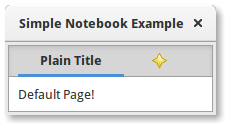
1 2 3 4 5 6 7 8 9 10 11 12 13 14 15 16 17 18 19 20 21 22 23 24 25 26 27 28 29 30 31 | import gi gi.require_version("Gtk", "3.0") from gi.repository import Gtk class MyWindow(Gtk.Window): def __init__(self): super().__init__(title="Simple Notebook Example") self.set_border_width(3) self.notebook = Gtk.Notebook() self.add(self.notebook) self.page1 = Gtk.Box() self.page1.set_border_width(10) self.page1.add(Gtk.Label(label="Default Page!")) self.notebook.append_page(self.page1, Gtk.Label(label="Plain Title")) self.page2 = Gtk.Box() self.page2.set_border_width(10) self.page2.add(Gtk.Label(label="A page with an image for a Title.")) self.notebook.append_page( self.page2, Gtk.Image.new_from_icon_name("help-about", Gtk.IconSize.MENU) ) win = MyWindow() win.connect("destroy", Gtk.main_quit) win.show_all() Gtk.main() |