18. Dialogs
Dialog windows are very similar to standard windows, and are used to provide or retrieve information from the user. They are often used to provide a preferences window, for example. The major difference a dialog has is some prepacked widgets which layout the dialog automatically. From there, we can simply add labels, buttons, check buttons, etc. Another big difference is the handling of responses to control how the application should behave after the dialog has been interacted with.
There are several derived Dialog classes which you might find useful.
Gtk.MessageDialog is used for most simple notifications. But at other
times you might need to derive your own dialog class to provide more complex
functionality.
18.1. Custom Dialogs
To pack widgets into a custom dialog, you should pack them into the
Gtk.Box, available via Gtk.Dialog.get_content_area(). To just add
a Gtk.Button to the bottom of the dialog, you could use the
Gtk.Dialog.add_button() method.
A ‘modal’ dialog (that is, one which freezes the rest of the application from user
input), can be created by calling Gtk.Dialog.set_modal on the dialog or
set the flags argument of the Gtk.Dialog constructor to include
the Gtk.DialogFlags.MODAL flag.
Clicking a button will emit a signal called “response”. If you want to block
waiting for a dialog to return before returning control flow to your code, you
can call Gtk.Dialog.run(). This method returns an int which may be a value
from the Gtk.ResponseType or it could be the custom response value that
you specified in the Gtk.Dialog constructor or Gtk.Dialog.add_button().
Finally, there are two ways to remove a dialog.
The Gtk.Widget.hide() method removes the dialog from view, however keeps
it stored in memory. This is useful to prevent having to construct the dialog
again if it needs to be accessed at a later time. Alternatively, the
Gtk.Widget.destroy() method can be used to delete the dialog from memory
once it is no longer needed. It should be noted that if the dialog needs to be
accessed after it has been destroyed, it will need to be constructed again
otherwise the dialog window will be empty.
18.1.1. Example
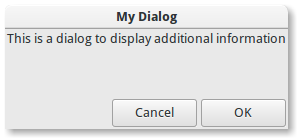
1 2 3 4 5 6 7 8 9 10 11 12 13 14 15 16 17 18 19 20 21 22 23 24 25 26 27 28 29 30 31 32 33 34 35 36 37 38 39 40 41 42 43 44 45 46 47 48 49 | import gi gi.require_version("Gtk", "3.0") from gi.repository import Gtk class DialogExample(Gtk.Dialog): def __init__(self, parent): super().__init__(title="My Dialog", transient_for=parent, flags=0) self.add_buttons( Gtk.STOCK_CANCEL, Gtk.ResponseType.CANCEL, Gtk.STOCK_OK, Gtk.ResponseType.OK ) self.set_default_size(150, 100) label = Gtk.Label(label="This is a dialog to display additional information") box = self.get_content_area() box.add(label) self.show_all() class DialogWindow(Gtk.Window): def __init__(self): Gtk.Window.__init__(self, title="Dialog Example") self.set_border_width(6) button = Gtk.Button(label="Open dialog") button.connect("clicked", self.on_button_clicked) self.add(button) def on_button_clicked(self, widget): dialog = DialogExample(self) response = dialog.run() if response == Gtk.ResponseType.OK: print("The OK button was clicked") elif response == Gtk.ResponseType.CANCEL: print("The Cancel button was clicked") dialog.destroy() win = DialogWindow() win.connect("destroy", Gtk.main_quit) win.show_all() Gtk.main() |
18.2. MessageDialog
Gtk.MessageDialog is a convenience class, used to create simple,
standard message dialogs, with a message, an icon, and buttons for user response.
You can specify the type of message and the text in the Gtk.MessageDialog
constructor, as well as specifying standard buttons.
In some dialogs which require some further explanation of what has happened,
a secondary text can be added. In this case, the primary message entered when
creating the message dialog is made bigger and set to bold text. The secondary
message can be set by calling Gtk.MessageDialog.format_secondary_text().
18.2.1. Example
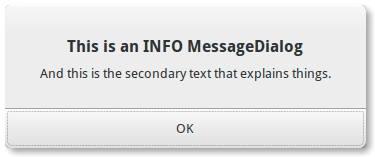
1 2 3 4 5 6 7 8 9 10 11 12 13 14 15 16 17 18 19 20 21 22 23 24 25 26 27 28 29 30 31 32 33 34 35 36 37 38 39 40 41 42 43 44 45 46 47 48 49 50 51 52 53 54 55 56 57 58 59 60 61 62 63 64 65 66 67 68 69 70 71 72 73 74 75 76 77 78 79 80 81 82 83 84 85 86 87 88 89 90 91 92 93 94 95 96 97 98 99 100 101 102 103 104 | import gi gi.require_version("Gtk", "3.0") from gi.repository import Gtk class MessageDialogWindow(Gtk.Window): def __init__(self): super().__init__(title="MessageDialog Example") box = Gtk.Box(spacing=6) self.add(box) button1 = Gtk.Button(label="Information") button1.connect("clicked", self.on_info_clicked) box.add(button1) button2 = Gtk.Button(label="Error") button2.connect("clicked", self.on_error_clicked) box.add(button2) button3 = Gtk.Button(label="Warning") button3.connect("clicked", self.on_warn_clicked) box.add(button3) button4 = Gtk.Button(label="Question") button4.connect("clicked", self.on_question_clicked) box.add(button4) def on_info_clicked(self, widget): dialog = Gtk.MessageDialog( transient_for=self, flags=0, message_type=Gtk.MessageType.INFO, buttons=Gtk.ButtonsType.OK, text="This is an INFO MessageDialog", ) dialog.format_secondary_text( "And this is the secondary text that explains things." ) dialog.run() print("INFO dialog closed") dialog.destroy() def on_error_clicked(self, widget): dialog = Gtk.MessageDialog( transient_for=self, flags=0, message_type=Gtk.MessageType.ERROR, buttons=Gtk.ButtonsType.CANCEL, text="This is an ERROR MessageDialog", ) dialog.format_secondary_text( "And this is the secondary text that explains things." ) dialog.run() print("ERROR dialog closed") dialog.destroy() def on_warn_clicked(self, widget): dialog = Gtk.MessageDialog( transient_for=self, flags=0, message_type=Gtk.MessageType.WARNING, buttons=Gtk.ButtonsType.OK_CANCEL, text="This is an WARNING MessageDialog", ) dialog.format_secondary_text( "And this is the secondary text that explains things." ) response = dialog.run() if response == Gtk.ResponseType.OK: print("WARN dialog closed by clicking OK button") elif response == Gtk.ResponseType.CANCEL: print("WARN dialog closed by clicking CANCEL button") dialog.destroy() def on_question_clicked(self, widget): dialog = Gtk.MessageDialog( transient_for=self, flags=0, message_type=Gtk.MessageType.QUESTION, buttons=Gtk.ButtonsType.YES_NO, text="This is an QUESTION MessageDialog", ) dialog.format_secondary_text( "And this is the secondary text that explains things." ) response = dialog.run() if response == Gtk.ResponseType.YES: print("QUESTION dialog closed by clicking YES button") elif response == Gtk.ResponseType.NO: print("QUESTION dialog closed by clicking NO button") dialog.destroy() win = MessageDialogWindow() win.connect("destroy", Gtk.main_quit) win.show_all() Gtk.main() |
18.3. FileChooserDialog
The Gtk.FileChooserDialog is suitable for use with “File/Open” or
“File/Save” menu items. You can use all of the Gtk.FileChooser methods
on the file chooser dialog as well as those for Gtk.Dialog.
When creating a Gtk.FileChooserDialog you have to define the dialog’s
purpose:
To select a file for opening, as for a File/Open command, use
Gtk.FileChooserAction.OPENTo save a file for the first time, as for a File/Save command, use
Gtk.FileChooserAction.SAVE, and suggest a name such as “Untitled” withGtk.FileChooser.set_current_name().To save a file under a different name, as for a File/Save As command, use
Gtk.FileChooserAction.SAVE, and set the existing filename withGtk.FileChooser.set_filename().To choose a folder instead of a file, use
Gtk.FileChooserAction.SELECT_FOLDER.
Gtk.FileChooserDialog inherits from Gtk.Dialog, so buttons have
response IDs such as Gtk.ResponseType.ACCEPT and Gtk.ResponseType.CANCEL
which can be specified in the Gtk.FileChooserDialog constructor.
In contrast to Gtk.Dialog, you can not use custom response codes with
Gtk.FileChooserDialog. It expects that at least one button will have
of the following response IDs:
When the user is finished selecting files, your program can get the selected
names either as filenames (Gtk.FileChooser.get_filename()) or as URIs
(Gtk.FileChooser.get_uri()).
By default, Gtk.FileChooser only allows a single file to be selected at
a time. To enable multiple files to be selected, use
Gtk.FileChooser.set_select_multiple(). Retrieving a list of selected files
is possible with either Gtk.FileChooser.get_filenames() or
Gtk.FileChooser.get_uris().
Gtk.FileChooser also supports a variety of options which make the files
and folders more configurable and accessible.
Gtk.FileChooser.set_local_only(): Only local files can be selected.
Gtk.FileChooser.show_hidden(): Hidden files and folders are displayed.
Gtk.FileChooser.set_do_overwrite_confirmation(): If the file chooser was configured inGtk.FileChooserAction.SAVEmode, it will present a confirmation dialog if the user types a file name that already exists.
Furthermore, you can specify which kind of files are displayed by creating
Gtk.FileFilter objects and calling Gtk.FileChooser.add_filter().
The user can then select one of the added filters from a combo box at the bottom
of the file chooser.
18.3.1. Example
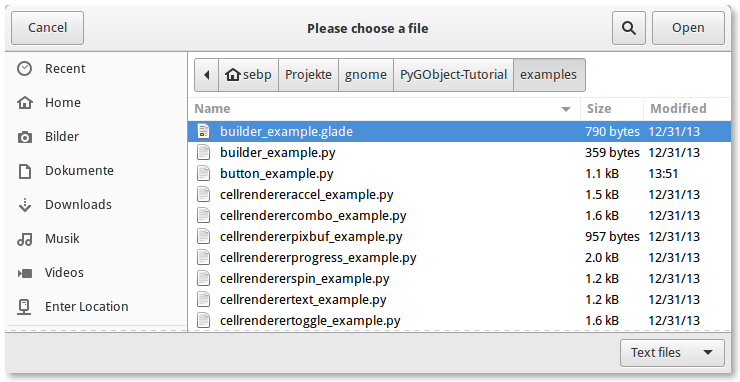
1 2 3 4 5 6 7 8 9 10 11 12 13 14 15 16 17 18 19 20 21 22 23 24 25 26 27 28 29 30 31 32 33 34 35 36 37 38 39 40 41 42 43 44 45 46 47 48 49 50 51 52 53 54 55 56 57 58 59 60 61 62 63 64 65 66 67 68 69 70 71 72 73 74 75 76 77 78 79 80 81 82 83 84 | import gi gi.require_version("Gtk", "3.0") from gi.repository import Gtk class FileChooserWindow(Gtk.Window): def __init__(self): super().__init__(title="FileChooser Example") box = Gtk.Box(spacing=6) self.add(box) button1 = Gtk.Button(label="Choose File") button1.connect("clicked", self.on_file_clicked) box.add(button1) button2 = Gtk.Button(label="Choose Folder") button2.connect("clicked", self.on_folder_clicked) box.add(button2) def on_file_clicked(self, widget): dialog = Gtk.FileChooserDialog( title="Please choose a file", parent=self, action=Gtk.FileChooserAction.OPEN ) dialog.add_buttons( Gtk.STOCK_CANCEL, Gtk.ResponseType.CANCEL, Gtk.STOCK_OPEN, Gtk.ResponseType.OK, ) self.add_filters(dialog) response = dialog.run() if response == Gtk.ResponseType.OK: print("Open clicked") print("File selected: " + dialog.get_filename()) elif response == Gtk.ResponseType.CANCEL: print("Cancel clicked") dialog.destroy() def add_filters(self, dialog): filter_text = Gtk.FileFilter() filter_text.set_name("Text files") filter_text.add_mime_type("text/plain") dialog.add_filter(filter_text) filter_py = Gtk.FileFilter() filter_py.set_name("Python files") filter_py.add_mime_type("text/x-python") dialog.add_filter(filter_py) filter_any = Gtk.FileFilter() filter_any.set_name("Any files") filter_any.add_pattern("*") dialog.add_filter(filter_any) def on_folder_clicked(self, widget): dialog = Gtk.FileChooserDialog( title="Please choose a folder", parent=self, action=Gtk.FileChooserAction.SELECT_FOLDER, ) dialog.add_buttons( Gtk.STOCK_CANCEL, Gtk.ResponseType.CANCEL, "Select", Gtk.ResponseType.OK ) dialog.set_default_size(800, 400) response = dialog.run() if response == Gtk.ResponseType.OK: print("Select clicked") print("Folder selected: " + dialog.get_filename()) elif response == Gtk.ResponseType.CANCEL: print("Cancel clicked") dialog.destroy() win = FileChooserWindow() win.connect("destroy", Gtk.main_quit) win.show_all() Gtk.main() |